How to respond to Google reviews
Open your Business Profile, choose Read reviews, then the reply button next to the review. Keep it short and personal: thank them, mention something specific, and for a bad review, say sorry and offer to put it right offline.
Time needed: 2 minutes per reviewHow to reply
Your profile has to be verified before you can reply. On a computer (from Google's help page):
- Search Google for your business name while signed in to the account that manages it, or go to business.google.com.
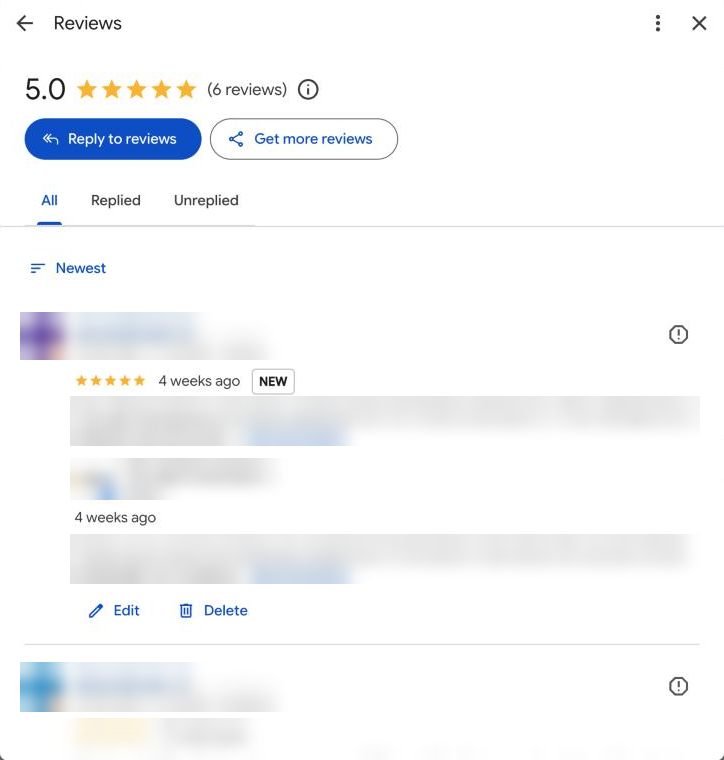
- Choose Read reviews. The Unreplied tab shows the ones still waiting.
- Next to the review, choose Reply (or Reply to reviews at the top to go through them in turn).
- Write your reply and choose Reply again to post it.
On a phone, the same options appear when you search for your business in the Google Maps or Google app while signed in.
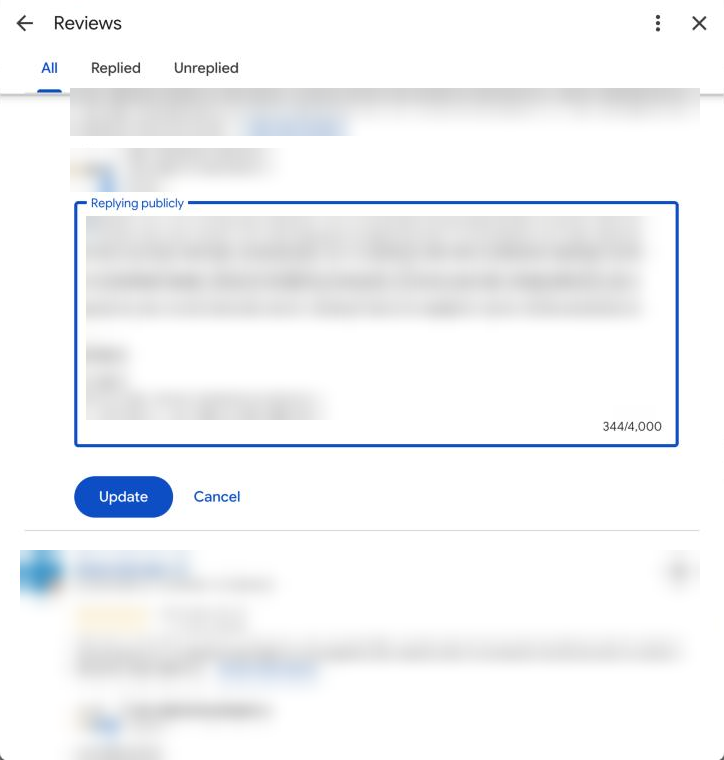
Google checks replies before they appear. Most show within about 10 minutes; some take longer. The reviewer gets a notification, and your reply shows under the review as coming from the business, not from you personally. You can edit or delete a reply later from the same place.
Replying to a good review
Short, warm and specific. Use their first name, mention the job, and say thanks. Don't paste the same line under every review: Google's own advice is to avoid generic replies.
Thanks so much, Maria! Glad the new water heater is keeping up with a full house. Give us a shout if you need anything else.
Appreciate you, Tom. The pool's looking great after the green clean-up. See you on Thursday's visit!
Tip: Mentioning the service and the town in a natural way ("the roof repair in Clermont") is fine. Stuffing in a list of keywords isn't, and reads badly to customers.
Replying to a bad review
- Wait an hour if you're angry. The reply stays up for years.
- Thank them and say sorry for their experience, even if you disagree with the details.
- Give one line of fact, without blame, if something needs correcting.
- Offer to fix it offline with a name and a phone number or email.
- Never share private details about the customer or the job, and never attack the reviewer.
Hi James, I'm sorry the first visit didn't fix the leak. That's not the standard we aim for. I'd like to make it right: please call me directly on 407-555-0123 and I'll get someone out this week. — Dave, owner
Customers read your reply as much as the review. A calm, helpful answer to a 1-star review often does more for you than another 5-star one. If the review breaks Google's rules (spam, someone who was never a customer, hate or threats), you can also report it. See how to remove bad Google reviews.
Mistakes to avoid
- Copy-and-paste replies on every review.
- Offering a discount or freebie in exchange for changing a review (Google prohibits it).
- Using replies as ads, with deals and promotions. Google asks businesses not to.
- Arguing in public, or naming staff the customer complained about.
- Leaving old reviews unanswered. It's never too late to reply.
Questions
Does the reviewer see my reply?
Yes. Google notifies them when you reply. They can still edit their review afterwards.
How long until my reply shows up?
Google checks every reply against its policies. Most appear within about 10 minutes, but some can take up to 30 days.
Should I reply to reviews with no text, just stars?
Yes, briefly. A one-line thank you shows customers you read every review.
Can someone else reply for me?
Yes. Anyone you add as an owner or manager on your Business Profile can reply. Replies show as the business, not as the person who wrote them.